
How to Integrate Power BI Visuals into PowerPoint: Step-by-Step Guide
Discover how to integrate Power BI visuals into PowerPoint to make your presentations more interactive and effective.

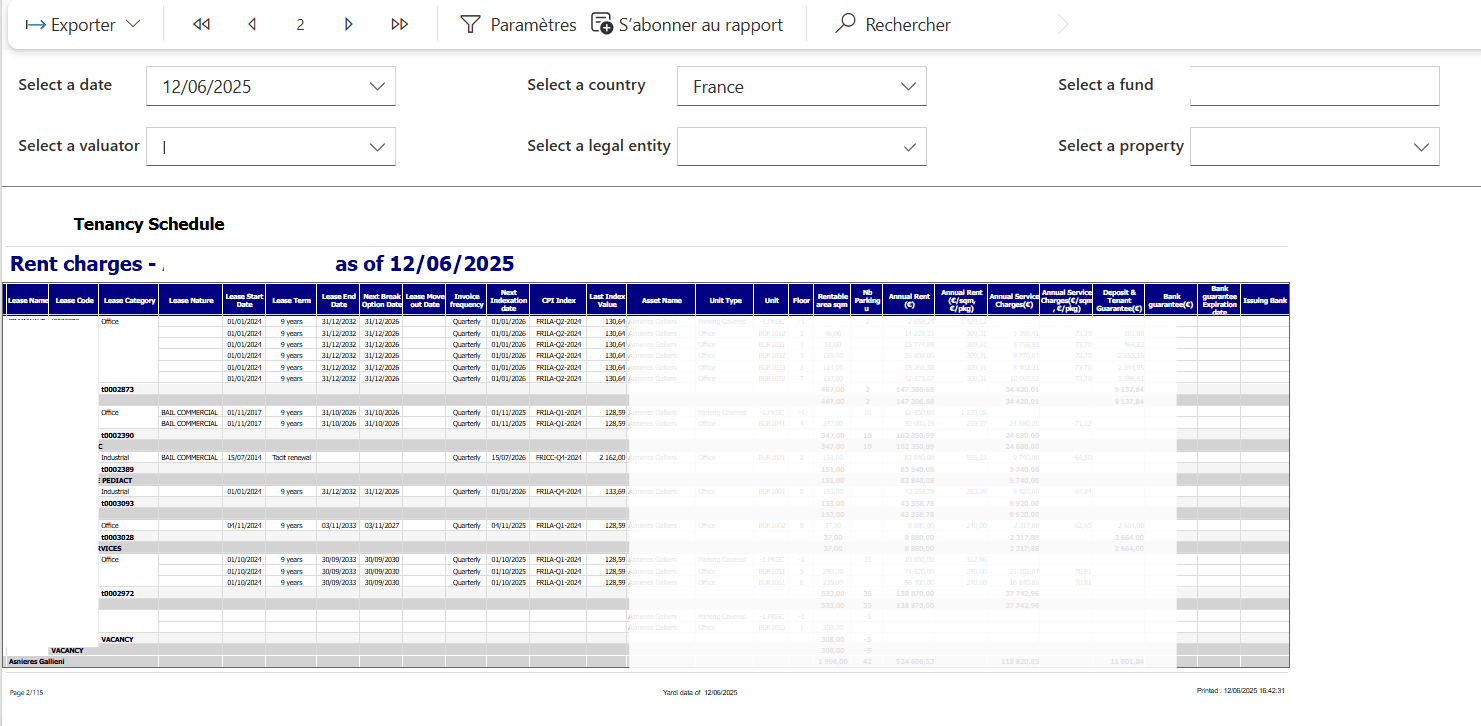
Integrating Power BI visuals directly into a PowerPoint presentation is a powerful feature that allows you to share dynamic and interactive data with your teams and stakeholders. This guide explains step by step how to proceed and the prerequisites for successful integration.
Prerequisites for Integrating Power BI into PowerPoint
Before starting, make sure you meet the following requirements:
1. Power BI License
You need a Power BI Pro license or access to Power BI Premium to integrate Power BI visuals into PowerPoint. A free Power BI license does not allow you to use this feature.
2. Access to Power BI Service
The visuals you want to integrate must be published on Power BI Service (the online Power BI service). Local reports or Desktop mode reports cannot be directly integrated.
3. Microsoft PowerPoint (Web or Desktop Version)
You will need PowerPoint with an Internet connection, as integrated Power BI visuals are interactive and require a connection to Power BI Service to function properly.
It's recommended to verify that your Office 365 user account is the same one you use in Power BI Service.
4. Internet Browser
The integration feature can also be used via recent browser versions such as Microsoft Edge, Google Chrome, or Firefox.
Steps to Integrate Power BI Visuals into PowerPoint
Step 1: Publish a Report on Power BI Service
Before integrating a visual, your Power BI report must already be published on Power BI Service.
- In Power BI Desktop, click File > Publish > Publish to Power BI
- Select the workspace where you want to host your report
Step 2: Access the Report in Power BI Service
- Log in to Power BI Service (https://app.powerbi.com)
- Navigate to the report you want to integrate into PowerPoint
- Open the report and select the visual you want to share
Step 3: Get the Integration Link for PowerPoint
- On the report page, in the upper right corner of the visual you selected, click the three dots (...) to open the context menu
- Select Embed > PowerPoint
- Power BI generates a specific integration link for PowerPoint
Step 4: Integrate the Visual into PowerPoint
- Open PowerPoint (online or desktop version)
- Go to the Insert tab, then click Power BI in the ribbon
- Paste the integration link you retrieved from Power BI Service
- The visual automatically integrates into the slide
You may need to install the Power BI add-in for PowerPoint via the Microsoft Store.
Step 5: Interact with the Visual in PowerPoint
Once integrated, you can interact with the visual during your presentation:
- Filter data directly from PowerPoint
- Refresh data in real-time if changes have been made in Power BI Service
- Zoom on certain parts of the visual to better illustrate your points
Other Options and Useful Tips
Automatic Updates
If the Power BI report is updated in Power BI Service, the visual integrated in PowerPoint will automatically update with the new data.
Data Security
Only people with access rights to Power BI Service will be able to see the data in PowerPoint. If an unauthorized person tries to open the visual, they will be prompted to log in to Power BI Service.
Confidentiality
If your visuals contain sensitive data, make sure access permissions are properly configured in Power BI before sharing your presentation.
Conclusion
Integrating Power BI visuals into PowerPoint allows you to make your presentations more dynamic and interactive, while ensuring your data is always up to date.
Follow these simple steps to maximize the impact of your data and strengthen collaboration within your teams through powerful, real-time visualizations.
Need help with your Power BI presentations? Book a free diagnostic
Newsletter
1 email per month, no spam
Receive my latest articles on Power BI, automation and data directly in your inbox.